Interactive Notebook-Style Methods - A New Way to Empower Analysts with Guided Workflows
What's New in 2025
Version 2025 introduces Interactive Notebook-Style Method - a powerful feature that enables you to standardize workflows that require human input. This new approach helps retain and share expert know-how, providing analysts with step-by-step guidance and greater flexibility during method runs.
Key Enhancements in Interactive Methods
By combining guided instructions with step-by-step execution, interactive methods bridge the gap between automated processing and manual review. Key capabilities include:
-
Customizable Titles and Descriptions: Add descriptive text to the entire method and to individual steps. Descriptions accept basic HTML formatting, enabling headings, styled text, and lists, which are displayed before and during interactive runs.
-
Step-by-Step Interactive Execution: Execute methods in Interactive Mode as an alternative to running them all at once. This provides greater control by allowing execution step-by-step, with opportunities for manual verification and adjustments between stages.
-
Pause and Menu Actions: Incorporate new Run Custom Operation steps directly into a method to pause execution or invoke any standard menu command by specifying its path, enabling highly flexible and guided workflows.
Example - A Method to Create a Method: Tuning Processing Settings
This workflow demonstrates how to build an interactive method for a new user to tune processing settings, and how to extract the finalized settings for further batch processing.
Step 1. Setting Up the Base Processing Steps
Tip
To tune settings interactively, use the Run Custom Operation versions of steps whenever they are available.
- Go to Method > New Method.
- Add steps (e.g. phase shift, colorize, baseline correction, blob detection) to tune the settings on the fly.
- Save the method.
Step 2. Adding Notebook-Style Instructions
- Open the saved method in the Method Editor.
-
Select the root method node to add an overall description to outline the goals for the analyst.
-
Select individual steps, and add step-specific instructions in the description box.
-
Insert a Check Baseline step after Correct Baseline to allow the user to visually inspect the baseline correction with 1D View before moving forward.
-
Save the method.
Step 3. Running the Method Interactively to Tune Settings
Info
The demo follows the Quick Start Demo 1 and 2 to tune settings.
The method used in this demo can be downloaded here: Interactive Tuning Method
- Open a new sample image.
- Select Method - Manage & Run Methods > choose the saved method from the previous step > click Run. The software will display the custom instructions at each stage.
- Click Run Interactive, and use the Next button to execute the method step-by-step.
- When the method pauses at the Check Baseline step, verify the parameters and manually adjust the settings interactively if required for this specific sample.
Step 4. Extracting the Method for Batch Processing
Once the interactive run is complete and you are satisfied with the tuned settings on the image,
- Click the Method > New Method from Current Image menu.
-
Save this newly extracted method.
Note
The extracted method does not include any interactive steps or narrative descriptions. Instead, each step defines specific parameters for consistent, repeatable execution across a batch of runs.
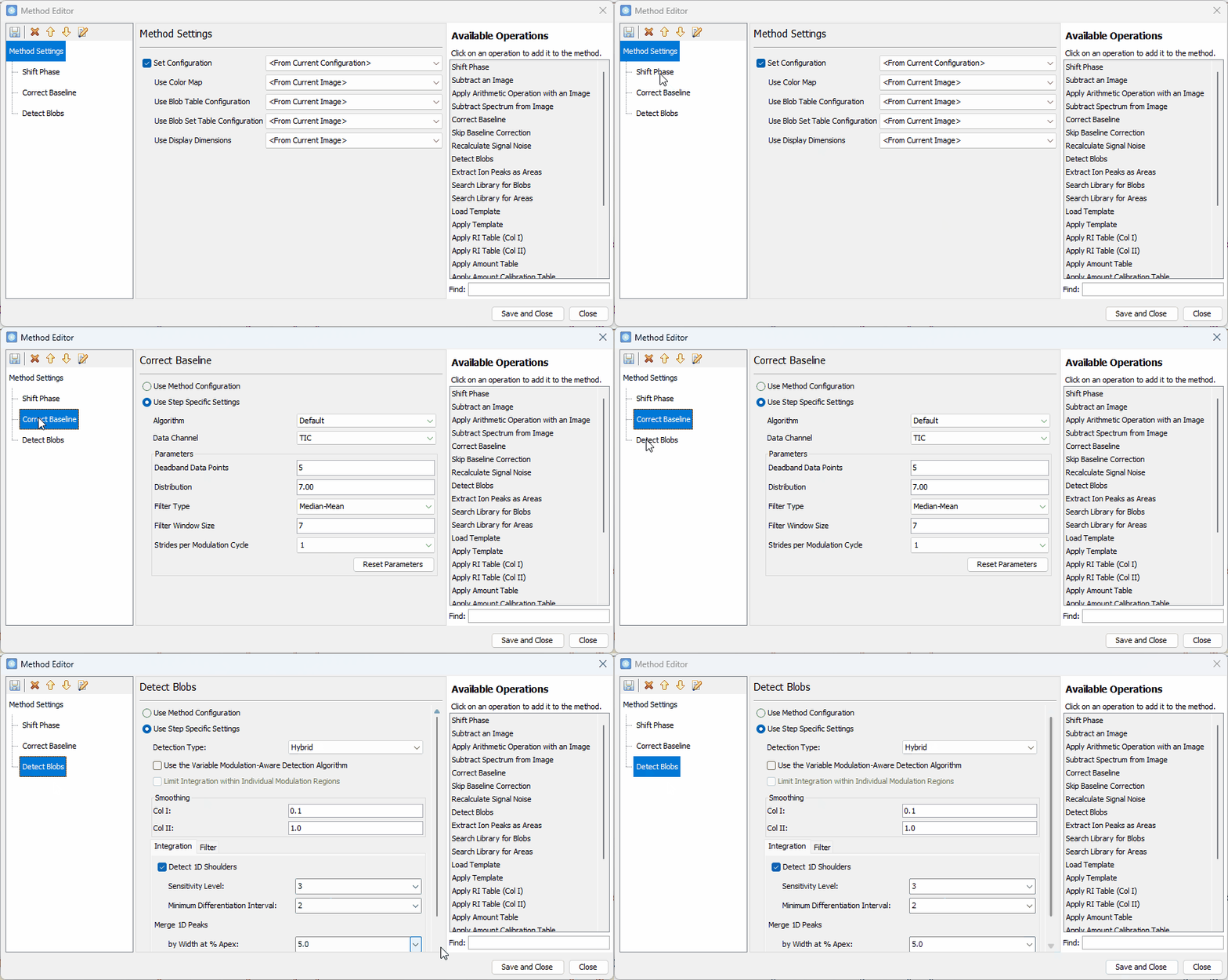
This extracted method will now contain the exact, fine-tuned parameters from your interactive session. You can now apply it across your entire project using standard batch processing.